# Creating a virtual network ZeroTire One and connecting to it
## Creating and configuring a ZeroTire network
1. Go to [ZeroTire](https://www.zerotier.com/) website.
 2. Sign up on ZeroTire.
 3. Go to your account.
4. Click on the *Create A Network*.
3. Go to your account.
4. Click on the *Create A Network*.
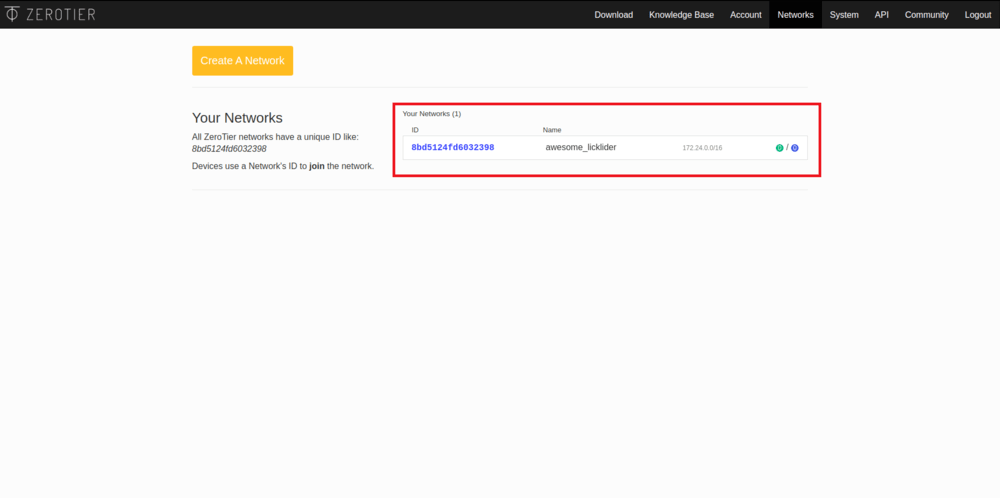
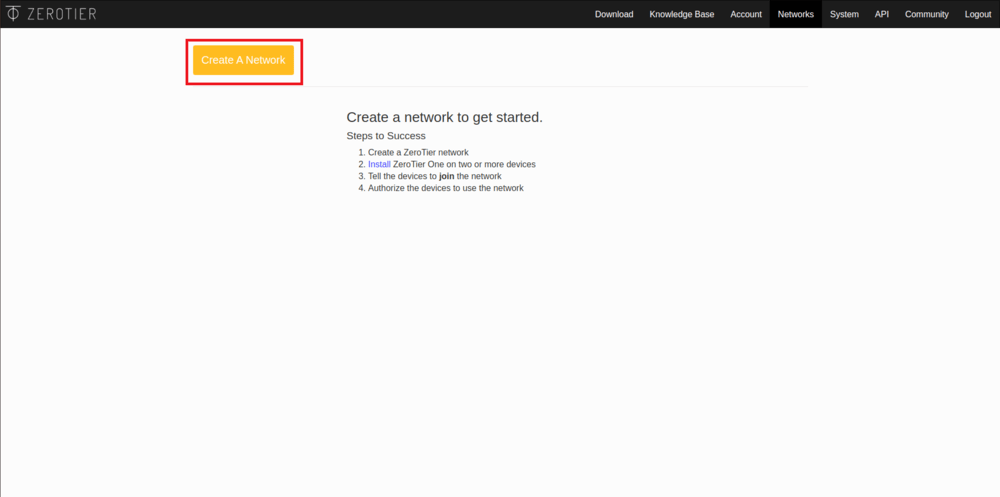 5. After that, you will see the network you created, its ID and name. Click on the network to configure it.
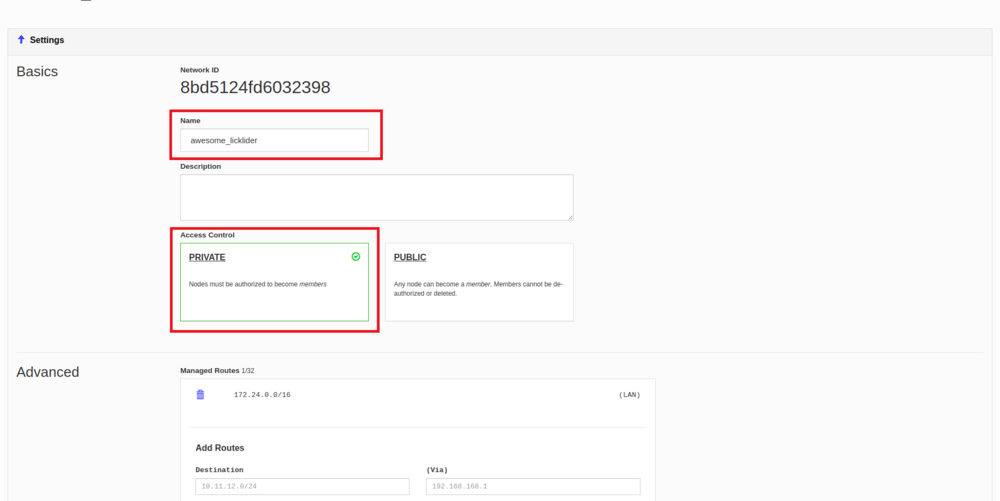
 6. In the window that appears you can change the network name and connection privacy.
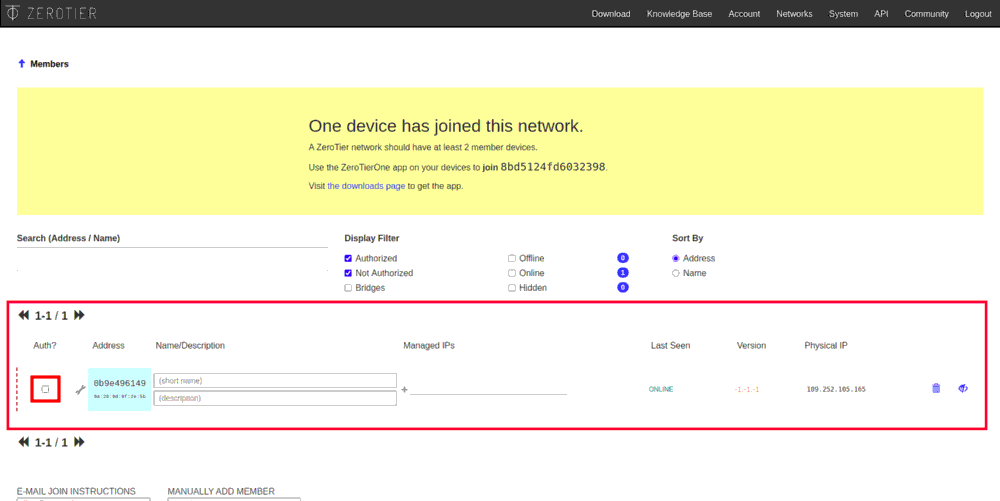
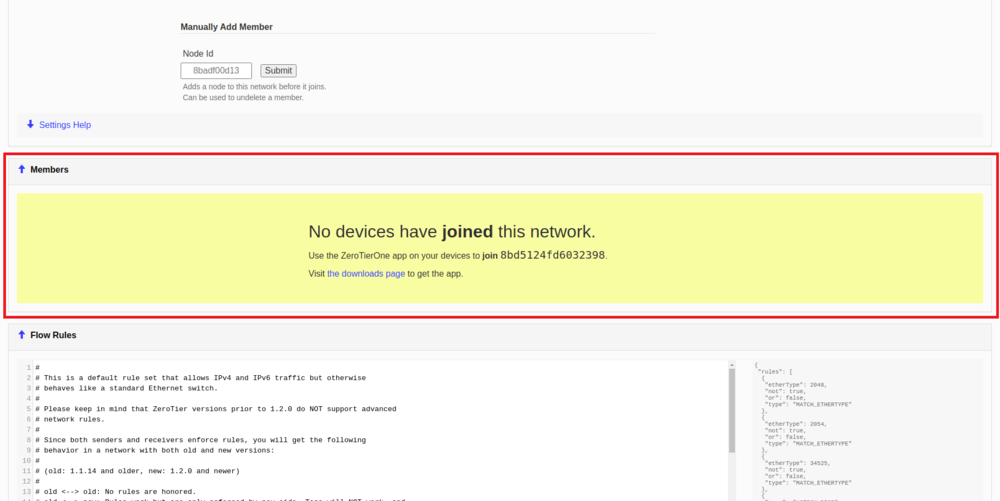
 7. Scroll down to the *Members* column. It will say that there are no users on the network.
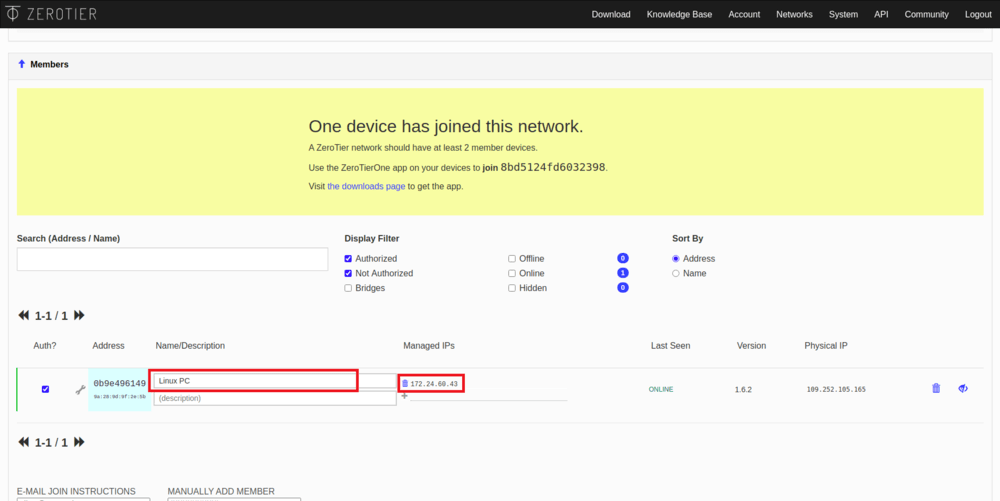
 8. Devices connected to the network will be displayed in this column. To allow them to connect to the network, activate the *Auth?* checkbox. The connected device will automatically be given an internal IP address, which will then be used to communicate with this device.
> **Hint** specify names for new devices, it will help you distinguish them from each other in the future.
9. Repeat the last step for all the devices that you want to connect.
> **Info** ZeroTire network supports up to 50 users simultaneously for free use.
## Setup on Windows
### Installing the app
1. Go to the ZeroTire website.
8. Devices connected to the network will be displayed in this column. To allow them to connect to the network, activate the *Auth?* checkbox. The connected device will automatically be given an internal IP address, which will then be used to communicate with this device.
> **Hint** specify names for new devices, it will help you distinguish them from each other in the future.
9. Repeat the last step for all the devices that you want to connect.
> **Info** ZeroTire network supports up to 50 users simultaneously for free use.
## Setup on Windows
### Installing the app
1. Go to the ZeroTire website.
 2. Click on the Windows icon.
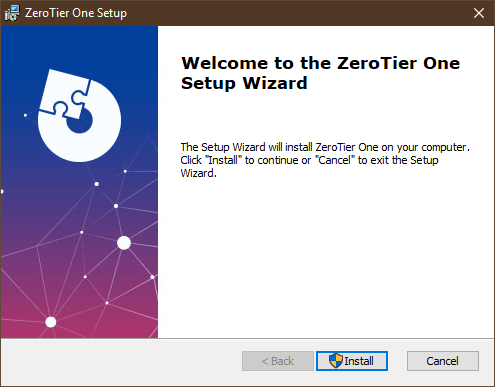
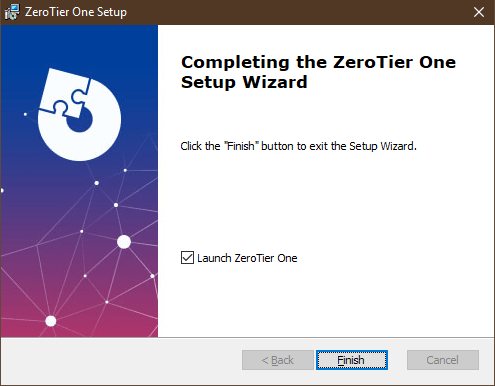
 3. Download and run the `Zero Tare One.msi` file.
### Network connection
1. Run ZeroTire One.
2. Click on the ZeroTire One icon in the taskbar.
3. Click on the *Join Network...* to connect to the network.
3. Download and run the `Zero Tare One.msi` file.
### Network connection
1. Run ZeroTire One.
2. Click on the ZeroTire One icon in the taskbar.
3. Click on the *Join Network...* to connect to the network.
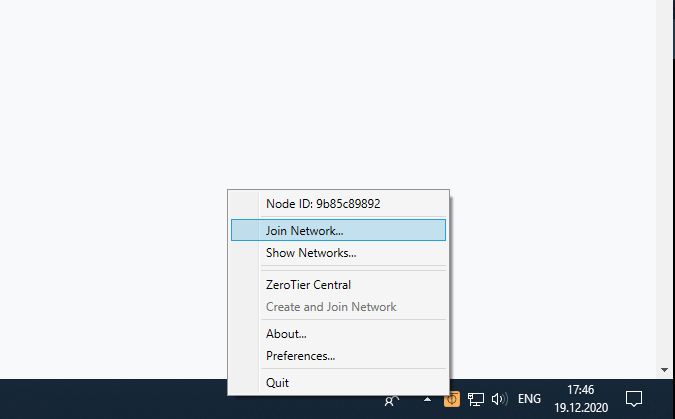 4. In the window that appears, enter your network ID and click *Join*.
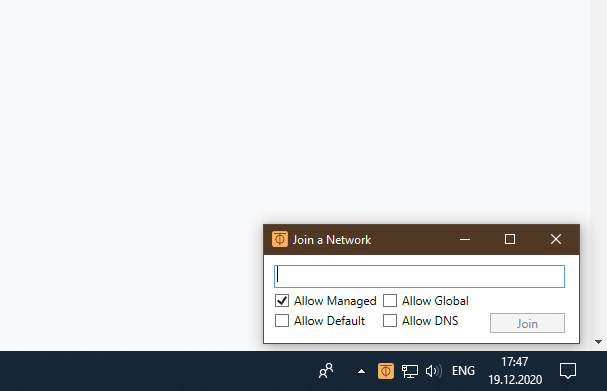 5. Allow using the new network.
## Setup on iOS
### Installing the app
1. Go to the ZeroTire website.
2. Click on the iOS icon.
3. Install the *ZeroTire One* app.
### Network connection
1. Run ZeroTire One app.
2. Click on *+* to add a new connection.
5. Allow using the new network.
## Setup on iOS
### Installing the app
1. Go to the ZeroTire website.
2. Click on the iOS icon.
3. Install the *ZeroTire One* app.
### Network connection
1. Run ZeroTire One app.
2. Click on *+* to add a new connection.
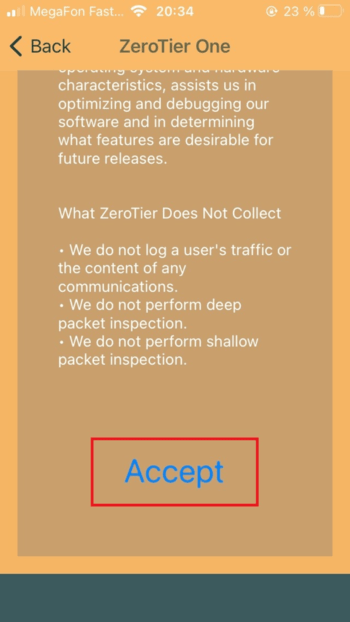
 3. Confirm the privacy policy.
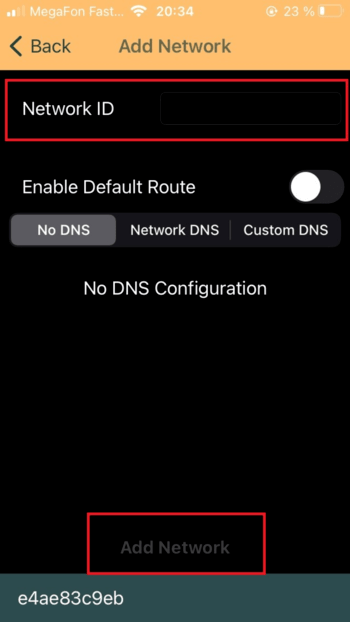
 4. Enter your network ID and click *Add Network*.
 5. Confirm adding the new VPN configuration.
6. Connect to the VPN network by sliding the network activation slider.
## Setup on Linux (PC, Raspberry Pi)
### Installing the app
1. Open the console by pressing the keyboard shortcut *ctrl + alt + t* or type *terminal* in the program search bar.
2. Enter the Zero Tare installation command.
```bash
curl -s https://install.zerotier.com | sudo bash
```
### Network connection
1. Open the console.
2. Enter the command `sudo zerotire-cli join network-id`, where `network-id` is your network ID.
5. Confirm adding the new VPN configuration.
6. Connect to the VPN network by sliding the network activation slider.
## Setup on Linux (PC, Raspberry Pi)
### Installing the app
1. Open the console by pressing the keyboard shortcut *ctrl + alt + t* or type *terminal* in the program search bar.
2. Enter the Zero Tare installation command.
```bash
curl -s https://install.zerotier.com | sudo bash
```
### Network connection
1. Open the console.
2. Enter the command `sudo zerotire-cli join network-id`, where `network-id` is your network ID.
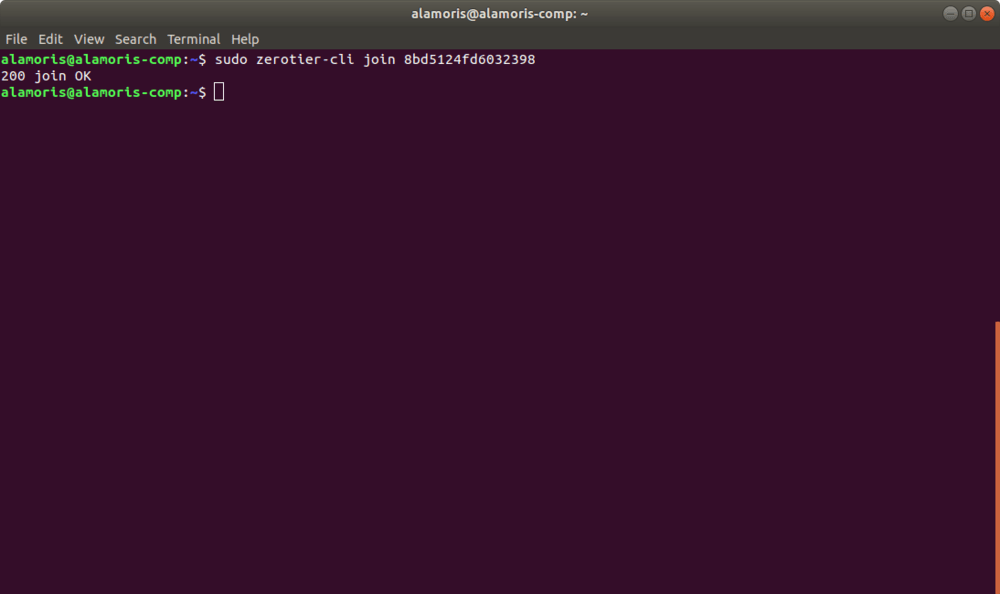 3. If the connection is successful, the corresponding message will be displayed in the console.
## Installing and configuring on macOS
### Installing the app
1. Go to the ZeroTire website.
2. Click on the macOS icon.
3. Download and run `ZeroTire One.pkg` file.
4. Install the ZeroTire One app.
### Network connection
1. Run ZeroTire One app.
2. Click on the ZeroTire One icon in the taskbar .
3. In the window that appears, click on *Join Network...*.
3. If the connection is successful, the corresponding message will be displayed in the console.
## Installing and configuring on macOS
### Installing the app
1. Go to the ZeroTire website.
2. Click on the macOS icon.
3. Download and run `ZeroTire One.pkg` file.
4. Install the ZeroTire One app.
### Network connection
1. Run ZeroTire One app.
2. Click on the ZeroTire One icon in the taskbar .
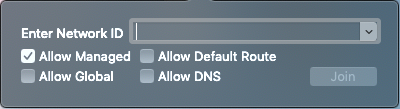
3. In the window that appears, click on *Join Network...*.
 4. In the *Enter Network ID* field, enter your network ID.
 ## Connecting to the copter
1. Make sure that ZeroTire is working and connected to the network on the drone and control device. To do this, make sure that these have an *Online* status.
## Connecting to the copter
1. Make sure that ZeroTire is working and connected to the network on the drone and control device. To do this, make sure that these have an *Online* status.
 2. Make sure that all devices have local IP addresses - *Managed IPs*.
3. Open GQC and in the *Comm Links* tab add a TCP connection specifying the IP of the drone. Read more about remote connection [here](gcs_bridge.md).
2. Make sure that all devices have local IP addresses - *Managed IPs*.
3. Open GQC and in the *Comm Links* tab add a TCP connection specifying the IP of the drone. Read more about remote connection [here](gcs_bridge.md).