# Camera setup
> **Note** The following applies to [image version](image.md) **0.15** and up. See [previous version of the article](https://github.com/CopterExpress/clever/blob/v0.14/docs/ru/camera_frame.md) (Russian only) for older images.
Computer vision modules (like [ArUco markers](aruco.md) and [Optical Flow](optical_flow.md)) require adjusting the camrea focus and set up camera position and orientation relative to the drone body.
## Focusing the camera lens
In order to focus the camera lens, do the following:
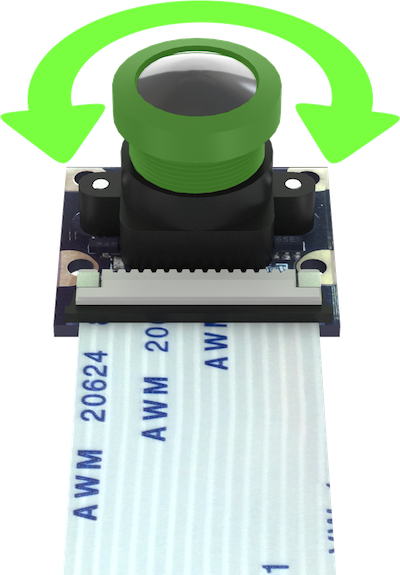 1. Open the live camera stream in your browser using [web_video_server](web_video_server.md).
2. Rotate the lens to adjust the image. Make sure the objects that are 2-3 m from the camera are in focus.
|Focused image|Unfocused image|
|-|-|
|
1. Open the live camera stream in your browser using [web_video_server](web_video_server.md).
2. Rotate the lens to adjust the image. Make sure the objects that are 2-3 m from the camera are in focus.
|Focused image|Unfocused image|
|-|-|
| |
| |
## Setting the camera position {#frame}
Position and orientation of the main camera is [set in the](cli.md#editing) `~/catkin_ws/src/clever/clever/launch/main_camera.launch` file:
```xml
```
This line describes how the camera is positioned relative to the drone body. Technically, it creates a static transform between the `base_link` frame ( which [corresponds to the flight controller housing](frames.md)) and the camera (`main_camera_optical`) in the following format:
```txt
shift_x shift_y shift_z yaw_angle pitch_angle roll_angle
```
Camera frame (that is, [frame of reference](frames.md)) is aligned as follows:
* **x** points to the right side of the image;
* **y** points to the bottom of the image;
* **z** points away from the camera matrix plane.
Shifts are set in meters, angles are in radians. You can check the transform for correctness using [rviz](rviz.md).
## Presets for Clever
The presets for usual camera orientations are available in the `main_camera.launch` file. The images should help you choose the one that is right for you: the first one is how your drone will be displayed in [rviz](rviz.md), the second is how the camera is actually mounted on the drone.
### 1. Camera faces downward, cable goes backward
```xml
```
|
## Setting the camera position {#frame}
Position and orientation of the main camera is [set in the](cli.md#editing) `~/catkin_ws/src/clever/clever/launch/main_camera.launch` file:
```xml
```
This line describes how the camera is positioned relative to the drone body. Technically, it creates a static transform between the `base_link` frame ( which [corresponds to the flight controller housing](frames.md)) and the camera (`main_camera_optical`) in the following format:
```txt
shift_x shift_y shift_z yaw_angle pitch_angle roll_angle
```
Camera frame (that is, [frame of reference](frames.md)) is aligned as follows:
* **x** points to the right side of the image;
* **y** points to the bottom of the image;
* **z** points away from the camera matrix plane.
Shifts are set in meters, angles are in radians. You can check the transform for correctness using [rviz](rviz.md).
## Presets for Clever
The presets for usual camera orientations are available in the `main_camera.launch` file. The images should help you choose the one that is right for you: the first one is how your drone will be displayed in [rviz](rviz.md), the second is how the camera is actually mounted on the drone.
### 1. Camera faces downward, cable goes backward
```xml
```

 ### 2. Camera faces downward, cable goes forward
```xml
```
### 2. Camera faces downward, cable goes forward
```xml
```

 ### 3. Camera faces upward, cable goes backward
```xml
```
### 3. Camera faces upward, cable goes backward
```xml
```

 ### 4. Camera faces upward, cable goes forward
```xml
```
### 4. Camera faces upward, cable goes forward
```xml
```

 > **Hint** The [`selfcheck.py` utility](selfcheck.md) will describe your current camera setup in a human-readable fashion. Be sure to check whether this description corresponds to your actual camera position.